01Quick start
ChestMasterPro receives and stores information about chests and clan composition. The ClanPlay website shows statistics, calculates scores and norms, and collects event ratings. To work you need a program, a game account and a ClanPlay account.
- Download the program and extract it to a permanent folder.
- Log in to your ClanPlay account and connect the desired clan.
- In the built-in browser, enter the game and open your clan.
- Upload the list of participants, then open “Clan → Gifts” and click “Collect” in the program.
- In the Sync section, click Send Now.
- Check the website for “Last Update”, dates and number of chests.
The owner sets up the clan once. Participants who only view the results do not need to install the program.
02Installing and updating the program
- Open ChestMasterPro page and download the current build for Windows.
- Unpack the entire archive, for example in
D:\ClanPlay\Мой клан. Do not run the program directly from the ZIP and do not transfer one EXE separately from other files. - Run
ChestMasterPro.Desktop.exe. Wait until the download completes. - If necessary, select a language in the settings, save the choice and restart the program.
The data folder contains your data. It is located next to the program. Do not delete it when updating. For a backup, close the program and copy the entire folder data to a separate place.
If the program offers an update, use it. When manually replacing files, first close the program and save a backup copy of your data. Updating on the same computer should remain connected and activated. If you need to connect again after the update, first contact support with the error text.
03Account and clan connection
The ClanPlay account and the game account are different accounts. The program connection window uses ClanPlay data; in the game browser - game account data.
Connection via account
- In the first launch window, enter your ClanPlay email and password and click “Continue.”
- Select an existing clan. If it doesn’t exist yet, select “Create a new clan”, fill in the name and abbreviation.
- Click "Connect Clan". Check that your clan is selected.
Connection with a one-time code
- Open personal account, find the clan and go to the control panel.
- In the ChestMasterPro connection block, create a code and copy it.
- In the program, select “Or connect with a code” or open “Settings → Synchronization with the clan website.”
- Paste the code and click the connect button. Check the name of the connected clan.
The one-time connection code is not a link to view statistics. If the code has expired or has already been used, create a new one. Do not create the same clan again just for the sake of connecting the program.
A clan can also be created from your personal account on the website. After creation, return to connecting the program.
04First collection of chests
- Open the “Browser” section of the program and enter the game.
- Expand the window. If necessary, click "Auto" to adjust the game scale.
- In the game, open your clan and list of members. Scroll to the end so that the program receives the full composition. In the program, check the “Clan” section.
- In the game, open “Clan → Gifts”.
- Click “Collect” in the program panel above the game. Wait for all steps to complete. To interrupt, use Stop.
- Open the "Chests" section and check the entries: player, name and time.
While collecting, leave the desired game section open. If another window or program is reporting an error on your screen, first restore the game to normal display. Don't change delays or scrolling settings unless necessary.
It is convenient to use separate program and data folders for different clans. Before collecting and sending, check the clan name in the program and on the website.
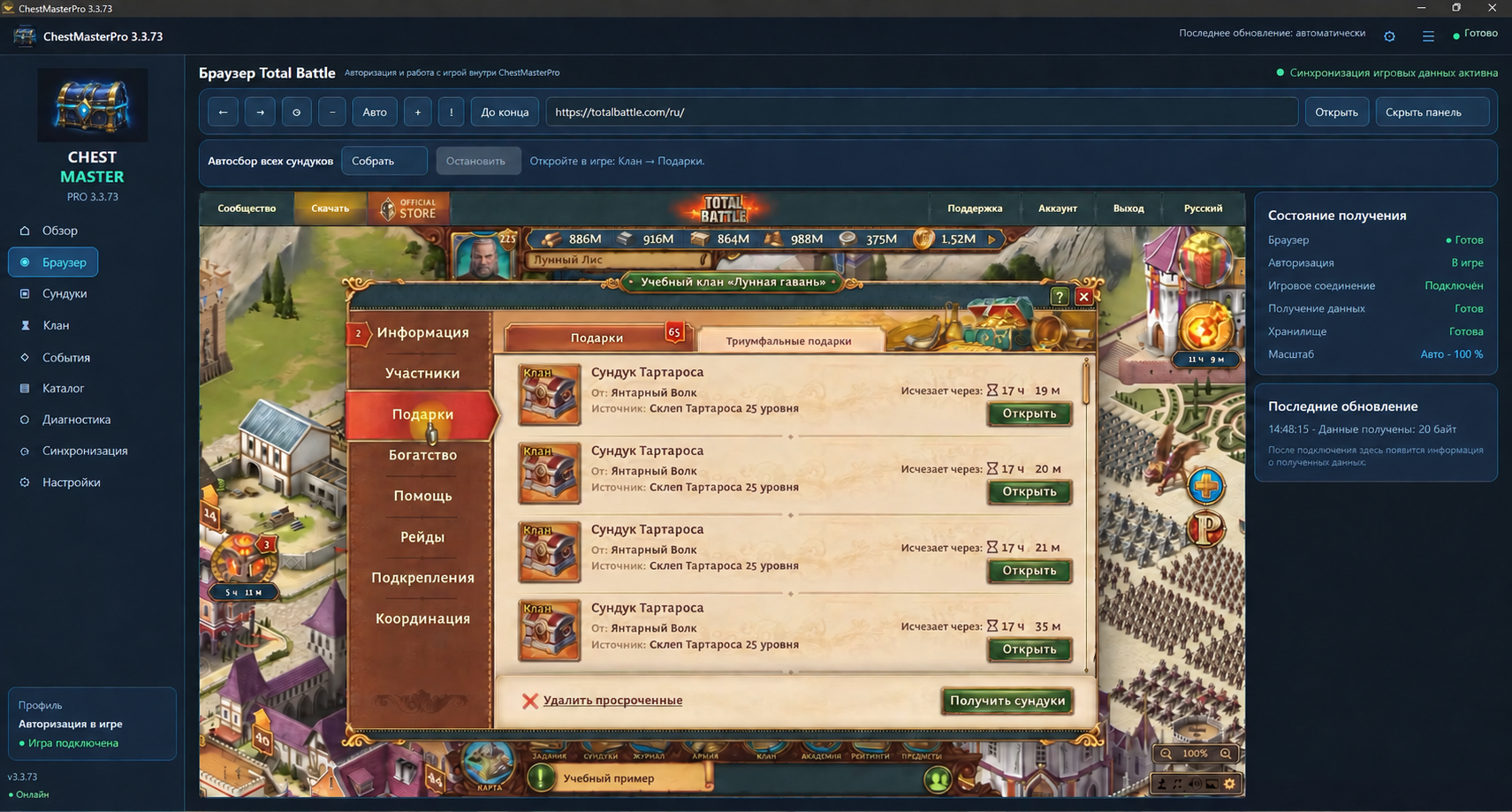 Program browser: first open “Clan → Gifts” in the game, then click “Collect” above the game window. Illustration based on interface version 3.3.73. Educational illustration with fictitious nicknames and clan name.
05Uploading to the site
Send manually
- Open Sync.
- Select "Upload last days." The range must cover the required dates; in the current interface you can select from 1 to 60 days.
- Click "Submit Now" and wait for the result message. The message “The image has already been accepted by the site” means that this data has already been received.
- Refresh the clan page. Check the “Last update” - the unloading time on the site is shown in Moscow.
Scheduled dispatch
In “Settings”, find “Scheduled upload to website”, turn on “Run automatically”, set the interval and click “Save schedule”. The computer and program must remain turned on, and the Internet must be accessible. Watch for success messages.
The time of the last unloading and the date when the chest was brought are different values. Posting old posts today doesn't make them today: they belong to their date.
06How to view clan statistics
- Open your clan page or the link provided by the owner.
- Look at the dates above the table. Select Today, Yesterday, Current Normal Period, Past Normal Period, or enter dates manually and click Show.
- Enter a nickname in the “Find a player” field.
- Through “Columns”, enable the desired groups of chests. On your phone, scroll horizontally across the wide table.
- Compare the number, points and norm. The cost of types can be viewed through the “Cost of chests”.
The quantity does not depend on the price. If a group is worth 0 points, its chests are still counted individually. A zero in the quantity column means there are no accounted chests for that group in the selected range, not a free cost.
Under the nickname, the length of stay according to the site is shown: the countdown starts from the first discovery of the player in the clan. This is not necessarily his actual entry date before observations begin.
In the Top 3 cards, click Show All to expand the list by selected category. The ranking of epic monsters and units compares the number of chests.
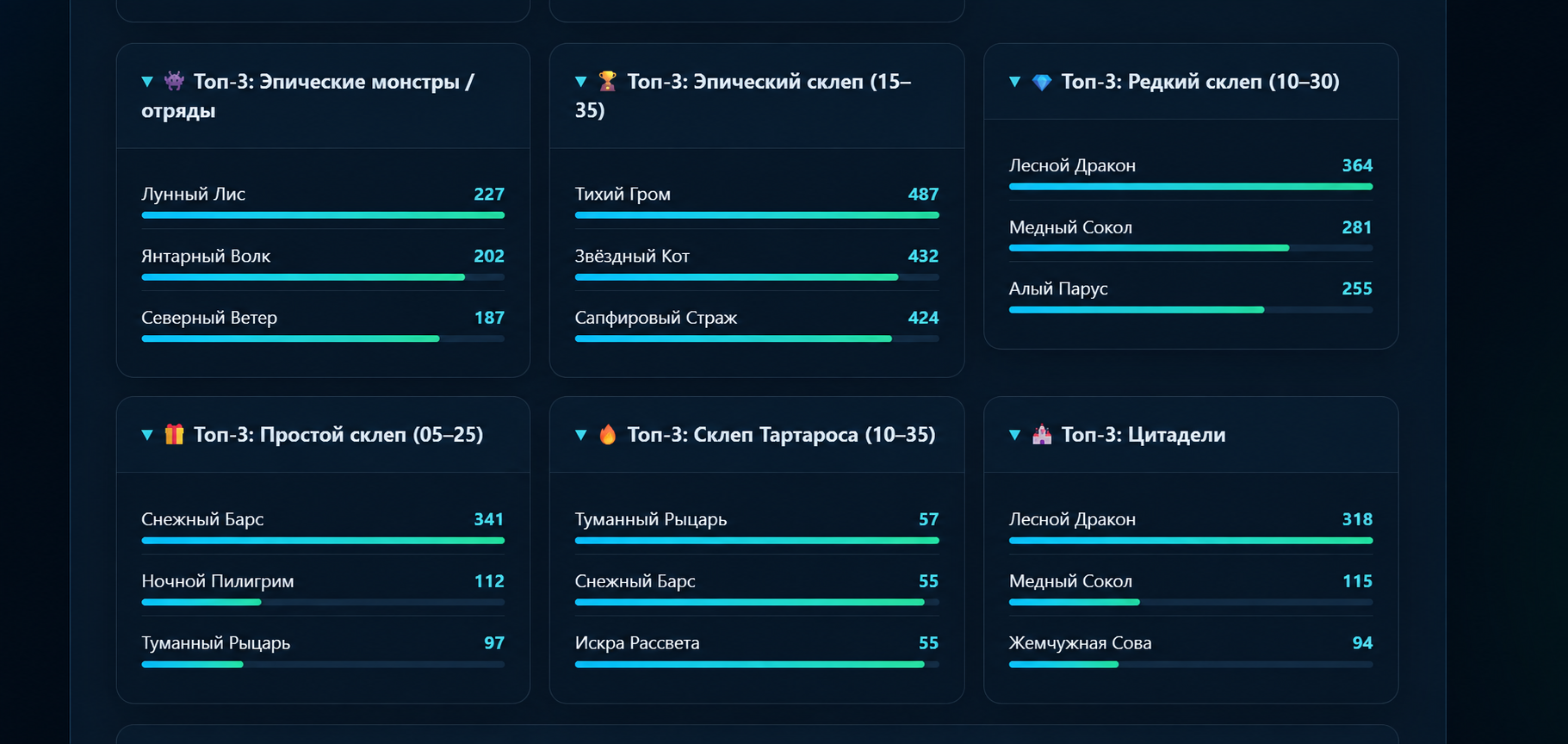 Example of rating cards by category. In the current interface, the full list is opened with the “Show all” button. Educational illustration with fictitious nicknames and clan name.
07Statistics dates and game reset times
The site has three independent ranges: normal period, calendar dates tables and event dates. Before comparing two amounts, make sure they cover the same amount of time.
| Normal mode | Signature on the page | Actual start in Moscow |
|---|
| Week | Monday–Sunday with numbers | Last Sunday at 20:00 |
| First half of the month | 1–15 | On the last day of the previous month at 20:00 |
| Second half of the month | 16th–last day | 15th at 20:00 |
| month | 1st–last day | On the last day of the previous month at 20:00 |
| Your cycle | Selected cycle | By date, time and time zone in settings |
For example, a week with a signature September 14–20 begins September 13 at 20:00 Moscow time and ends before September 20 at 20:00 Moscow time. At the time of reset, the next period begins.
Manual selection of calendar dates covers days from 00:00 to the end of the last selected day according to clan time. Therefore, this range may differ from the normal period with a game reset. Refer to the “Game Reset Time” caption and the specified time zone.
08Chest groups and points
These settings can be changed by the clan owner or a user with appropriate access. Open the control panel and the “Chest Groups and Points” section.
- Find the group you need or create a new one.
- Add to it only those types of chests that should be counted together. Check the title and source: the monster chest and the store gift can be different types.
- Specify the cost of one chest and save.
- Open statistics for the current period and check the results.
Example: 10 chests of 50 points each give 500 points. If you set the price to 0, the quantity will remain 10, and the accrual will be 0.
Changes in value in the current period apply to the entire current period, including chests already brought. Before changing, please note that participants' results will be recalculated.
In the epic monster rating settings, the owner selects his set of groups. Each clan's set may differ. This rating counts quantity; Assigned points do not replace the number of chests.
09Norms and debt transfer
In the norms section, set the required result for the players and save the changes. Check the selected period: the norm refers to it, and not to the arbitrary range that the participant opened in the statistics.
In the clan settings, you can enable “Carry over the shortfall to the next period.” The calculation starts from the switch-on period; old periods prior to inclusion do not retroactively create debt.
Example. The norm is 10,000, the player brought 8,000. In the next period, 2,000 debt will be added to the normal norm: 12,000 are required. If the player brings 11,000, 1,000 debt will remain. If it brings 13,000, the debt will be repaid; the usual rate of the future period will not decrease.
When carryover is turned off, the shortfall is not added to the requirement of the next period.
10Creating an event and counting chests
- Open the clan’s “Control Center” and the events section. Create a new event.
- Enter a title. For piece counting, select type "Chests".
- Enter the start and end date and time. Check the clan time zone shown.
- In “Groups of chests for counting”, mark the groups you need. For Ragnarok in our example, these are “Fenrir’s Chest” and “Jormungandr’s Chest”.
- If necessary, set a goal for the participant.
- Check “Show event on clan home page” and click “Publish event”. The draft can be saved separately.
The result is the sum of the number of selected chests brought at the dates and times of the event. Past event chests outside this range are not included. The monthly table may show a larger amount.
Teaching example. Event September 17–21: the player “Moon Fox” has 120 Fenrir chests and 41 Jormungandr chests - 161. 5 more Jormungandr chests were brought on September 9th. Therefore, for a month it turns out to be 166, and in the event 161 correctly remains.
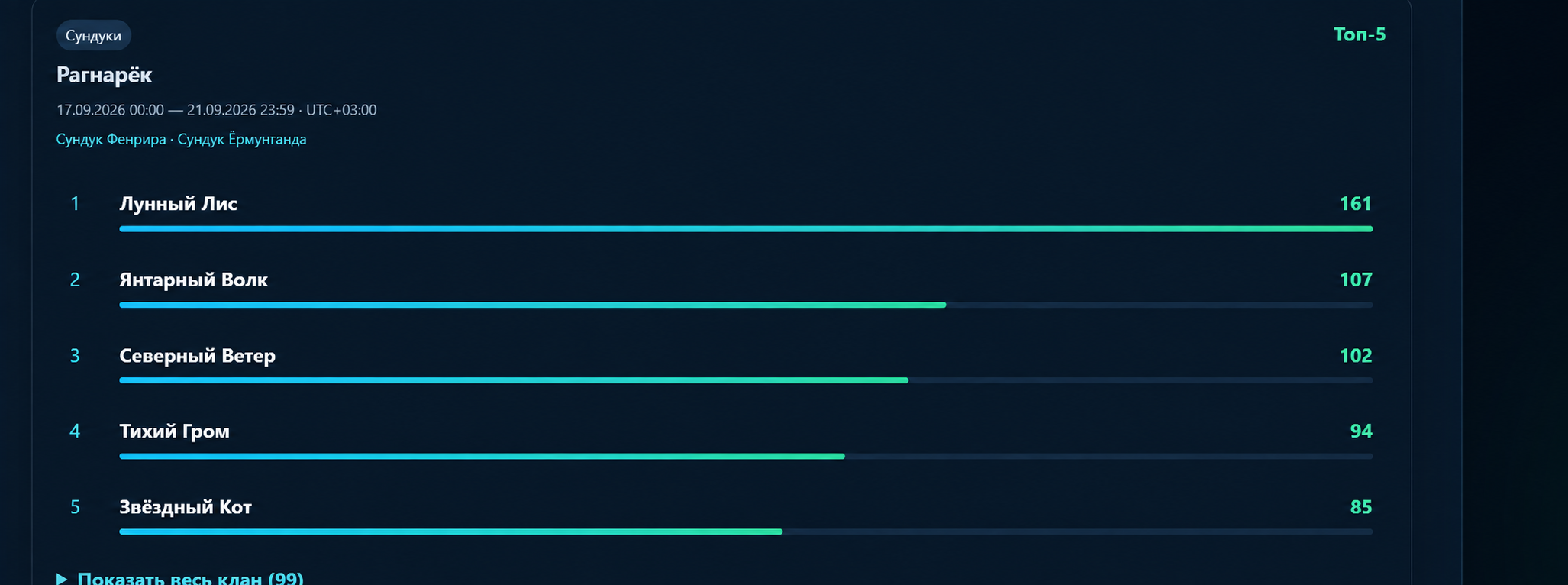 Ragnarok: The event's own dates and selected groups are shown above the rating. “Show entire clan” reveals the remaining members. Educational illustration with fictitious nicknames and clan name.
11Manual fixes and player list
Add or remove chests
- Open the manual adjustments section in the clan panel.
- Start typing your nickname in the search field and select a player from the list.
- Specify the date of the chest, the desired group or type and quantity to add or write off. Complete the comment so that the reason will be clear later.
- Save and check statistics for the same date.
The adjustment applies to the selected date. Do not use it to resolve differences between a monthly table and a shorter event until you have verified the dates of the original chests.
Those who left the clan
The list is at the bottom of the standards page. The owner can remove an individual player who left the clan using the “Delete” button or use the “Delete all those who left the clan”. Before mass action, make sure that the program has received the full current composition of your clan.
If IDs or a large number of unfamiliar players suddenly appear instead of nicknames, first check the clan data and report an error. Do not change norms at random for unknown participants.
12Member access and licenses
In the clan panel, configure the page visibility. In the “Link to view statistics” block, copy the link and give it to the participants: registration is not required to view using such a link. Please send the viewing link, not the one-time program connection code.
Your personal account contains clans, licenses and available actions. For a license, check the product name, status, term and associated computer. "Unlink Computer" is used when transferring to another device, and not for a regular update.
ChestMasterPro serves as a collection and upload tool. Indefinite activation of the program does not mean an indefinite paid tariff for the clan: check the status, restrictions and renewal of the clan separately in its account. Always check the current terms and conditions before paying.
For a promotional code, open the activation block, enter the code and, if the gift relates to ChestMasterPro, select the desired clan. After activation, check the result in the appropriate section.
13If the result does not match
| What do you see | What to check |
|---|
| There are no latest chests on the site | The correctness of the connected clan, the upload range and the “Submit Now” result. Then refresh the page and check the last upload time. |
| There is a quantity, but no points | Group cost. Price 0 saves quantity but does not award points. |
| Speakers are not visible on the phone | Turn it on via “Columns” and scroll the table to the right. |
| In an event in less than a month | Compare dates and time zones, then the composition of the selected groups. Old chests outside the event are not included. |
| Incorrect or unknown chest name | In the program settings, click “Update game directories”, wait for the result and, if necessary, “Reprocess the saved data”. Then repeat the upload. |
| Server unavailable or sending error | Check the Internet and site availability. Save the exact text of the error and try again later. Do not delete the database or reset the binding for the sake of verification. |
| UTC or invalid date error | Check for software updates. If the error persists, please provide support with the text, time, clan link and a copy of the closed program data via the agreed channel. |
To contact support, please indicate the clan name, page link, program version, player nickname, chest names, exact date range and expected date. Add a screenshot. Do not publish the password or license code.
14Reminder for every day
- Check that the desired clan is open and the game is authorized.
- Get up-to-date composition and chest data.
- Wait until collection is completed and sent successfully.
- Check the website for update time and selected period.
- If there is a discrepancy, first compare dates, time zones and groups, then individual records.
Videos and useful links
The guide is prepared on the interface and source code of ChestMasterPro and ClanPlay, custom site images and demo video. The illustrations show example screens: clan names, numbers and arrangement of elements may vary. Revised September 19, 2026. Prices and terms of trial access are intentionally not fixed - check them in your account.